How to Remove the Background from an Image in Seconds
Cut out people, products and pets from any photo with AI and download a transparent PNG—plus what to do with the cutout next.
 PixPal Team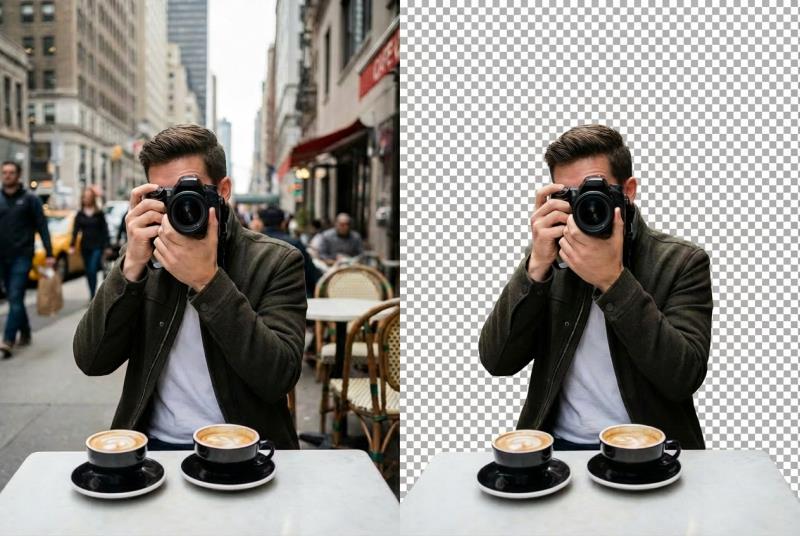
Product listings, profile pictures, presentation slides, stickers—so many everyday images start with the same step: getting the subject off its background. Doing it by hand with a lasso or pen tool is slow, and hair or fur almost never comes out right.
An AI background remover does that step for you. It finds the main subject, separates it from everything behind it—edges included—and gives you a transparent PNG you can drop into any design.
When it's useful
- E-commerce: clean product photos for Amazon, Shopify, Etsy and other marketplaces
- Profile pictures and headshots: a tidy cutout you can place on any color
- Marketing and social posts: subjects you can layer over graphics and text
- Personal projects: stickers, collages, cards and school presentations
Step by step
1. Upload your photo
Open Remove Background and drop in a JPG, PNG or WebP image. You can also paste from your clipboard or pick one of the sample photos to see how it works.
2. Start processing
Click Start processing. There is nothing to configure: the AI detects the subject on its own. Most cutouts are ready in a few seconds.
3. Check the edges
The result appears on a checkerboard pattern—the checkered areas are transparent. Switch to Compare and drag the slider to check the edges against the original, especially around hair, fur and fine details.
4. Download the transparent PNG
Click Download to save the cutout. The PNG keeps its transparency, so it sits cleanly on top of any background in your design tool, slide deck or store listing.
What to do next
From the result you can go straight to another tool with Continue in:
- AI Background — place your subject in a new scene instead of a plain color.
- Image Upscaler — enlarge the result when you need a bigger file.
- AI Object Removal — clean up a small leftover spot or a stray object.
Tips for the best cutout
- Make the subject clear. One main subject that stands out from the background gives the cleanest result. In a crowded photo, crop to the subject first.
- Good lighting helps. Strong contrast between subject and background makes edges easier to find; a subject that is the same color as the wall behind it is harder.
- Upload the largest version you have. The cutout keeps the resolution of the image you upload.
- Watch thin and see-through parts. Hair strands, glass and lace are handled automatically but are the first places to check in Compare.
FAQ
What file do I get? A transparent PNG of your subject, at the resolution of the image you uploaded.
Can I remove backgrounds from many photos? Yes, one image at a time—each takes a few seconds, and you can upload the next one right away. Uploading a whole batch at once isn't available yet.
Is it free? Signed-in users get a small number of free credits every day, which is enough to try it. Beyond that, each cutout uses credits from your balance—see Pricing.
Are my photos safe? Your photo is used to create your result and is kept in your account history. We do not sell your personal information—see our Privacy Policy for details.
Try it now: open Remove Background and upload a photo.