GPT Image 2 AI Image Generator for Text-Rich Visuals

OpenAI's GPT Image 2 is built for images that have to work in the real world—posters with readable headlines, clean infographics, and product photos that keep every detail. Generate from text or edit with up to 16 reference images, then export in the size you need, up to 4K. No API key, no code.

💡 Tip: put the exact words you want in quotation marks—GPT Image 2 will render them as written

Readable text in images

Headlines, labels, prices, and captions come out sharp and spelled correctly far more often than with older models—including text in languages beyond English.

Posters, infographics, and diagrams

GPT Image 2 is much stronger at structured visuals, so step-by-step guides, charts, slides, and comics keep a clear layout and reading order.

Edits that keep the details

Reference images are always processed at high fidelity, so you can change an outfit, a background, or the lighting while the person or product stays recognizable.

A size for every surface

Pick from 15 aspect ratios, three fixed sizes, or Auto, then choose 1K, 2K, or 4K—so the image fits your feed, banner, slide, or print layout.

Three steps with GPT Image 2

Step 1

Add a reference

Upload a product photo, portrait, or mood board—or start from text only.

Step 2

Describe your vision

Describe the layout, style, lighting, and props. GPT Image 2 understands long, detailed prompts.

Step 3

Generate & export

Pick your favorite result and download high-resolution files ready for stores and ads.

Introduce

What is GPT Image 2?

GPT Image 2 is an image generation and editing model from OpenAI. It was released in April 2026 and is the model behind ChatGPT Images 2.0. OpenAI designed it for production work—images that need to be accurate, readable, on-brand, and ready to use without heavy cleanup.

Compared with earlier GPT Image models, it follows instructions more reliably, renders text more clearly (including in languages other than English), and handles structured visuals such as posters, infographics, diagrams, charts, and comics much better. When you edit a photo, it processes your reference images at high fidelity by default, so faces, products, and fine details are more likely to survive the change. It also supports far more sizes and aspect ratios than before.

On PixPal you can use GPT Image 2 straight from your browser. Write a prompt to generate a new image, or upload up to 16 reference images to edit or combine them. Then choose your aspect ratio, 1K, 2K, or 4K resolution, Low, Medium, or High quality, and how many images to create at once.
What you can create with GPT Image 2

GPT Image 2 shines wherever an image has to carry words, structure, or an exact product.

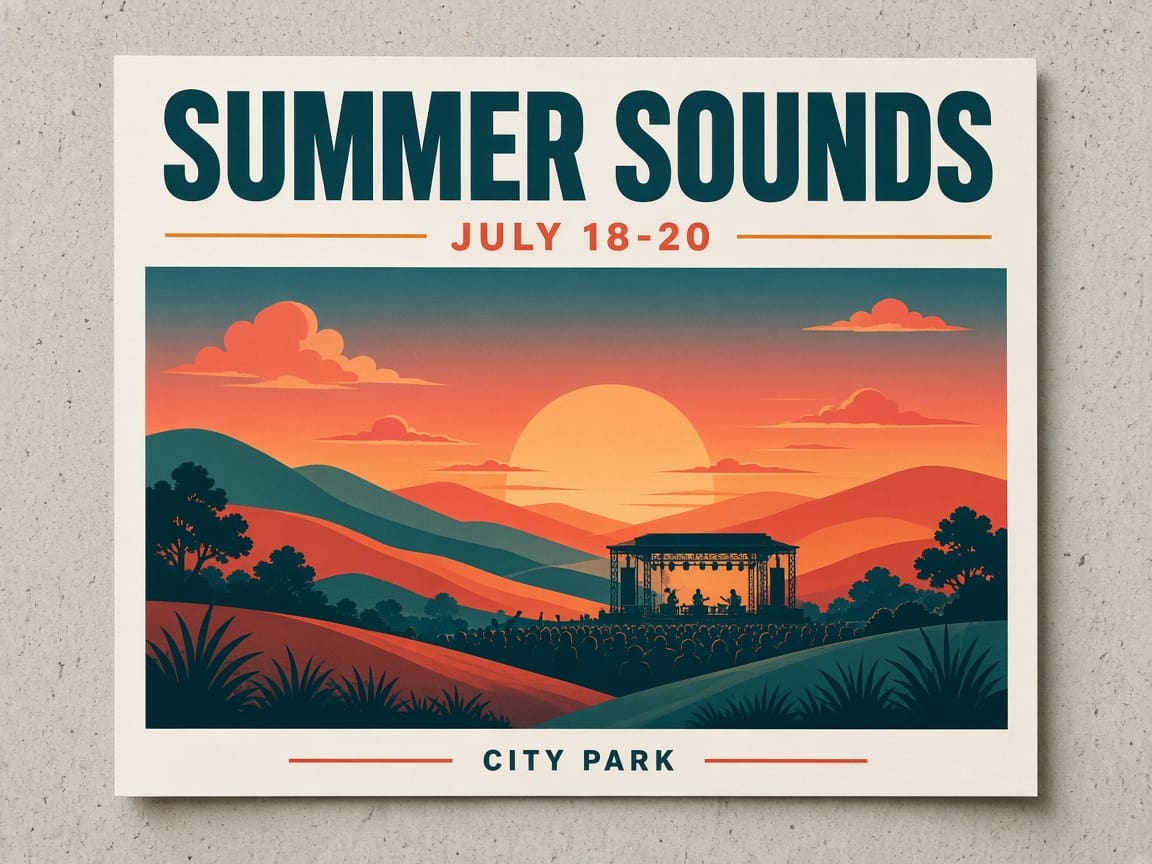
Festival poster with a clear headline made with GPT Image 2

Posters, flyers, and ads

Event posters, sale banners, and social ads live or die by their headline. Write the exact wording in quotation marks, say where it goes and how large it should be, and GPT Image 2 will lay it out with a clear visual hierarchy. Always proofread dates, prices, and names before you publish.

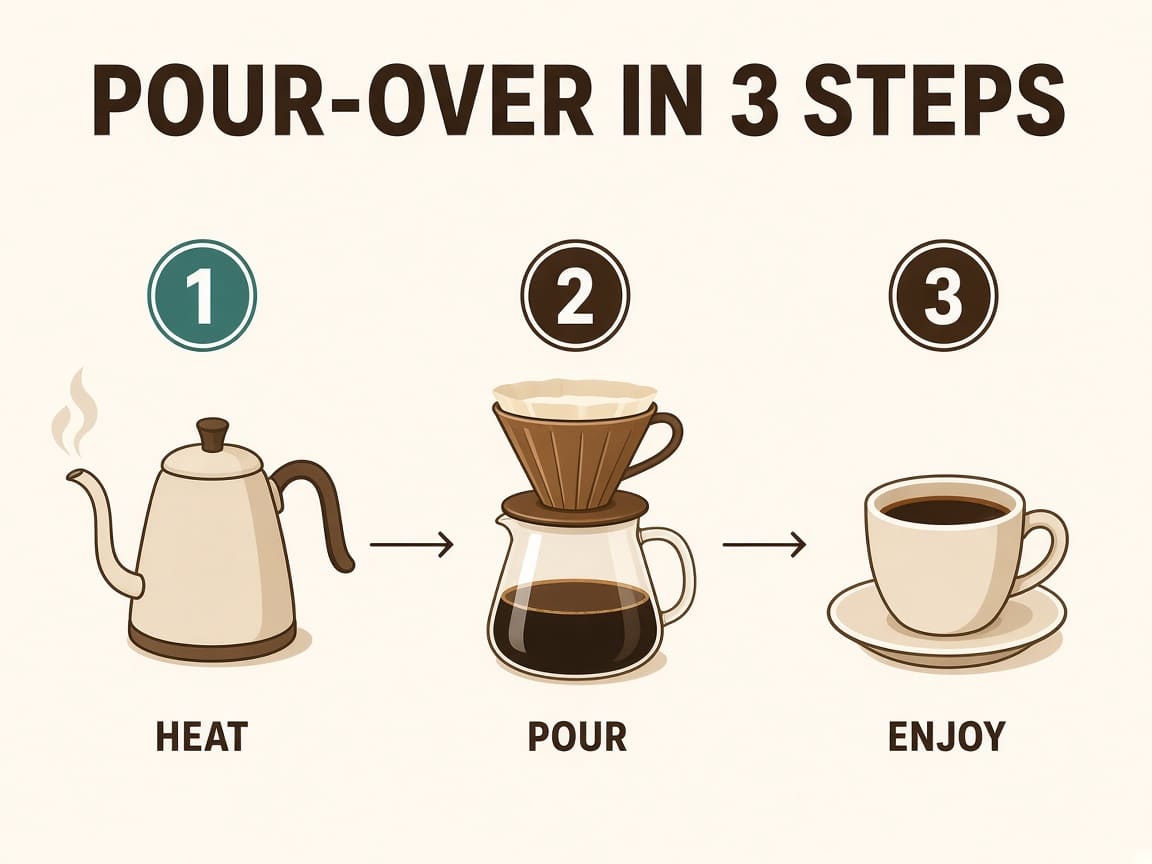
Step-by-step infographic made with GPT Image 2

Infographics, diagrams, and slides

Turn a process, a comparison, or a set of tips into a clean visual. Describe the title, the number of steps, and the label for each one, and GPT Image 2 keeps icons, numbers, and text neatly aligned—ideal for blog posts, presentations, and help docs.

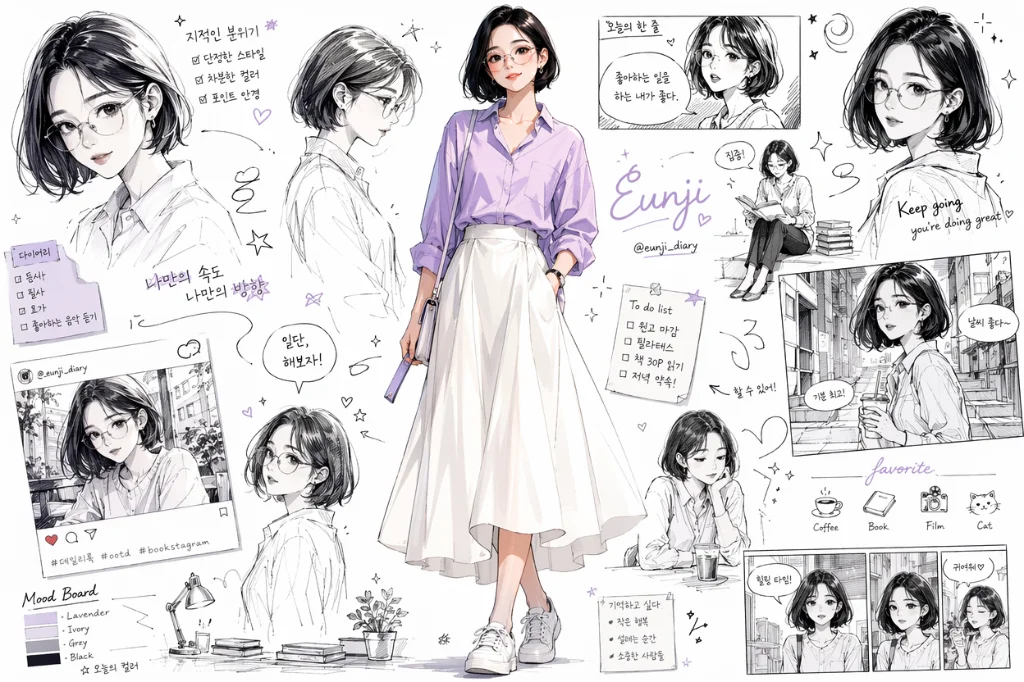
Character sheet with multilingual text made with GPT Image 2

Localized and multilingual content

Create character sheets, comics, and social posts with text in the language your audience reads. GPT Image 2 has improved multilingual text rendering, which makes it easier to adapt one design for different markets. Have a native speaker check the final copy.

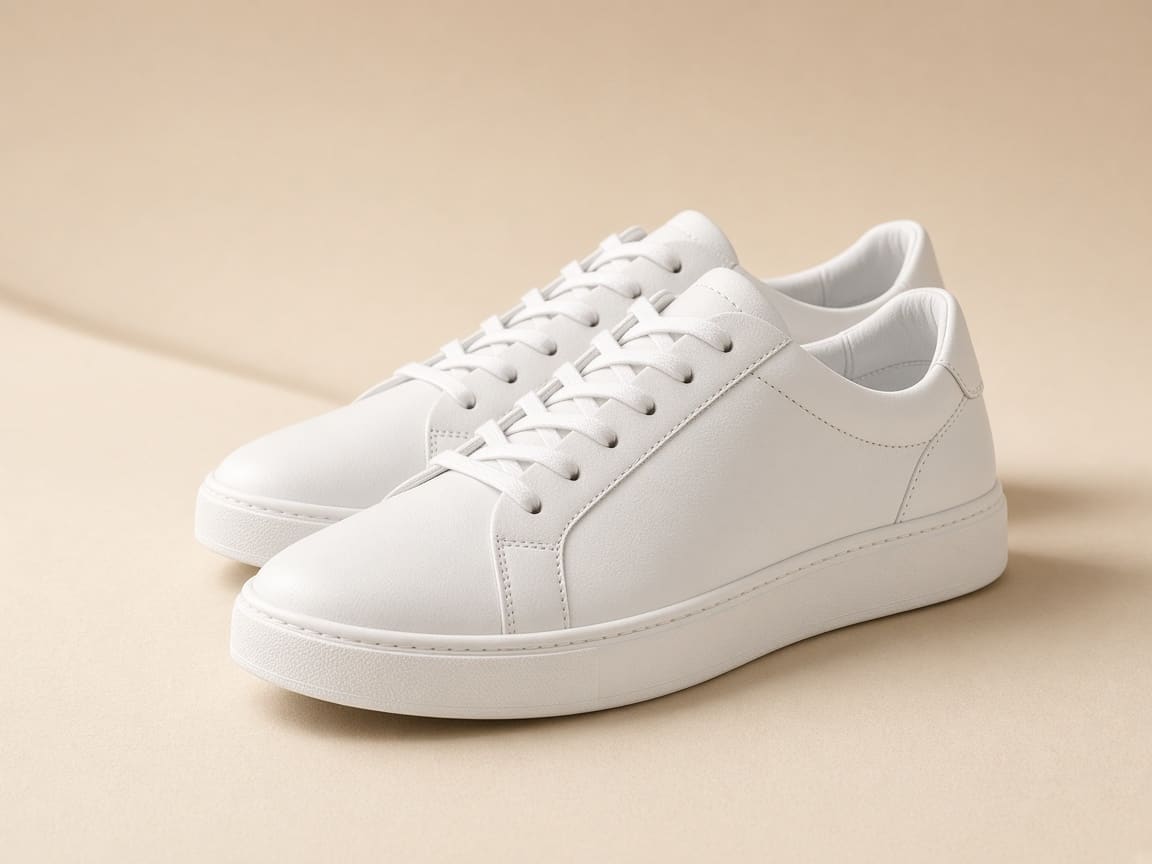
Catalog product photo of sneakers made with GPT Image 2

Product photos for your online store

Generate clean catalog shots from a description, or upload your own product photo and ask for a new backdrop, angle, or lighting setup. Because reference images are processed at high fidelity, stitching, materials, and shapes stay true to the real product.

GPT Image 2 features and settings

Everything you can control in the PixPal studio.

Text to image

Describe a scene and get posters, illustrations, infographics, or product shots, with text rendered exactly as you write it in quotation marks.

Image to image with up to 16 references

Edit a photo, restyle it, or combine several images. Upload up to 16 references in JPEG, PNG, or WebP, up to 10 MB each.

Aspect ratios and fixed sizes

Auto framing, 15 ratios including 1:1, 4:5, 9:16, 16:9, and 21:9, plus fixed sizes of 1024×1024, 1024×1536, and 1536×1024.

1K, 2K, and 4K resolution

Choose a resolution when you generate by aspect ratio. 4K is great for print, but OpenAI considers outputs above 2K experimental.

Three quality levels

Low for quick drafts, Medium for most work, and High for final images where fine detail and small text matter.

Batch generation

Create 1 to 10 images per run and compare them side by side to pick the best layout or style.

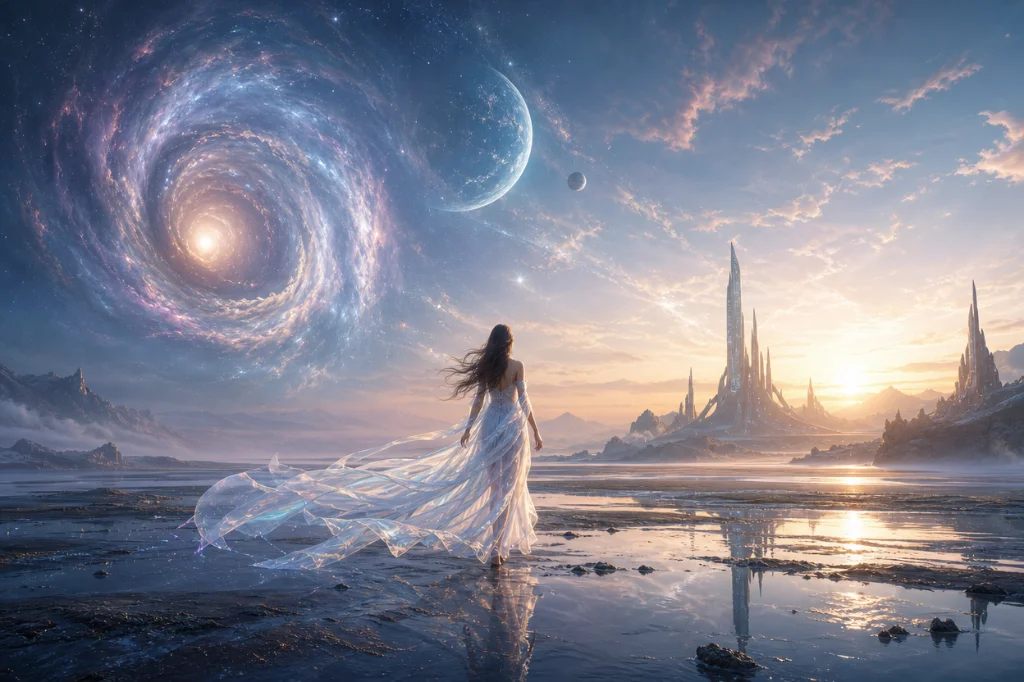
Detailed fantasy landscape generated from a long prompt with GPT Image 2

It follows long, detailed prompts

Describe the subject, the setting, the lighting, the mood, and a dozen small details, and GPT Image 2 is much more likely to include all of them than earlier models. That means fewer rerolls and less time rewriting prompts. For the best results, list the most important elements first and keep each instruction specific.

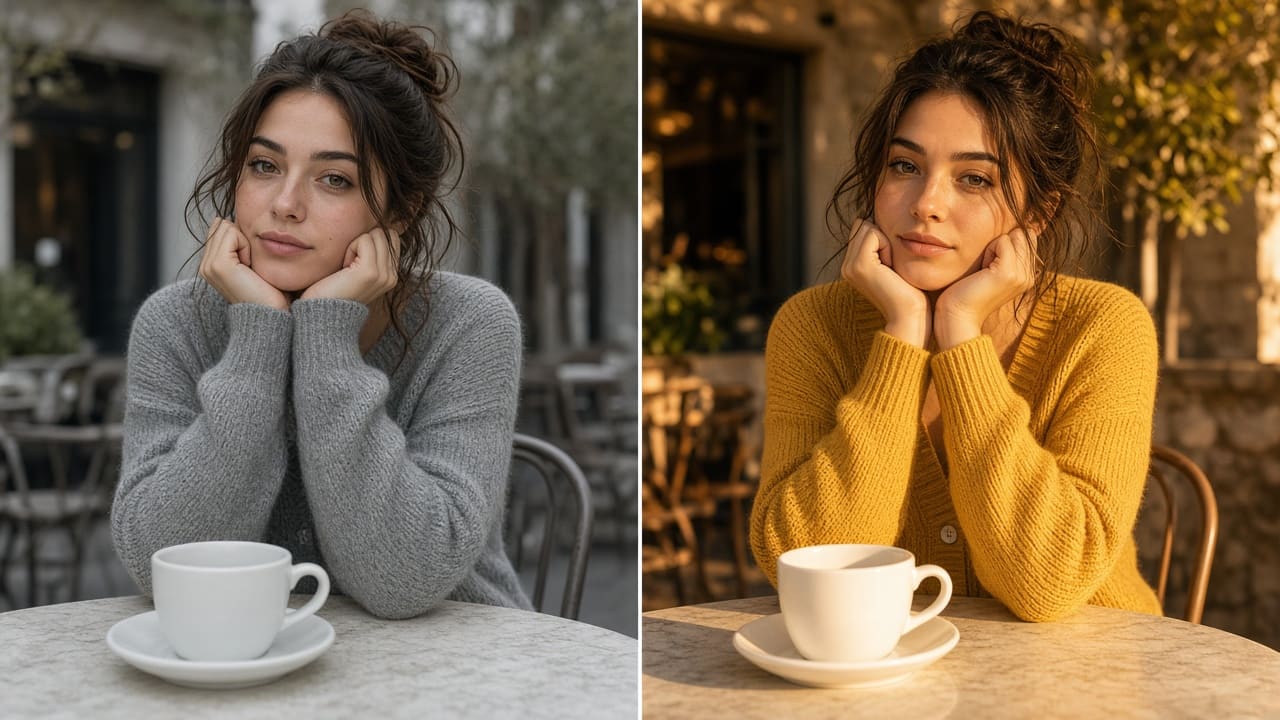
The same person before and after an outfit and lighting edit with GPT Image 2

Edits that keep faces and products intact

GPT Image 2 always processes your reference images at high fidelity. Ask it to change the outfit, the season, or the background, and the person's face, the product's shape, and the small details you care about are far more likely to stay the same. Say what to change and what to keep in the same prompt.

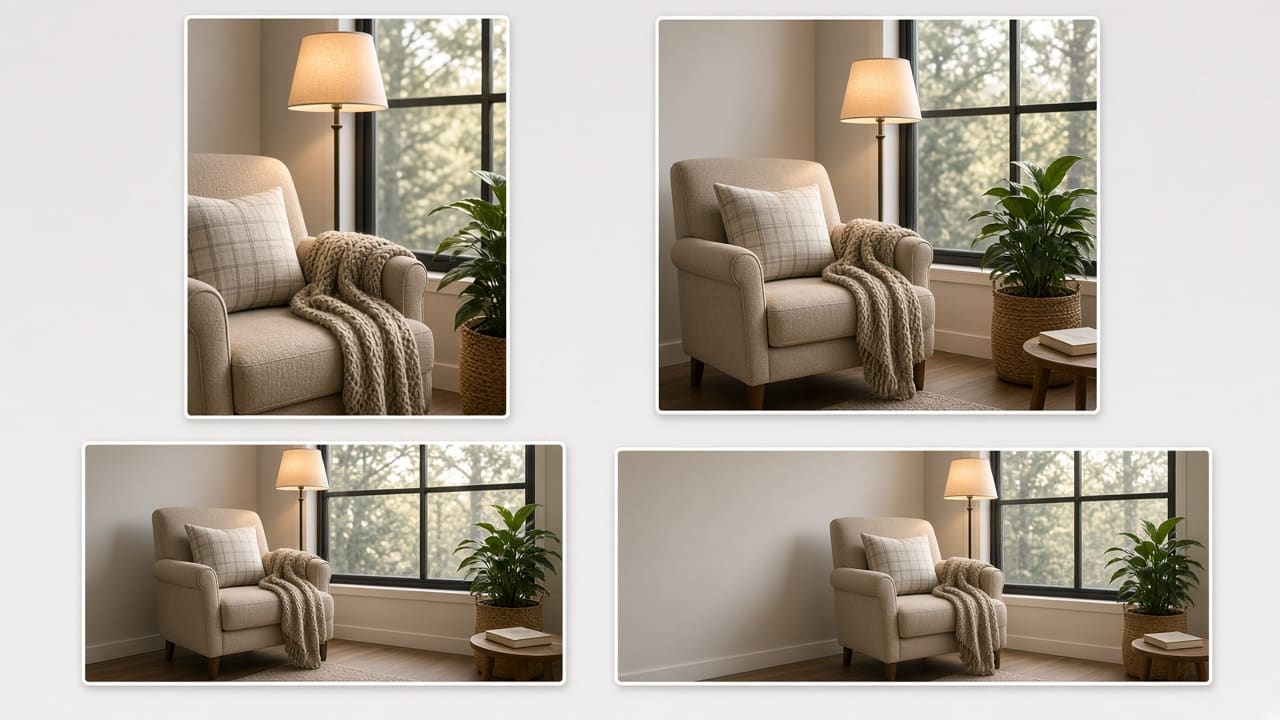
The same scene cropped to 9:16, 1:1, 16:9, and 21:9 with GPT Image 2

The right size for every placement

Choose Auto, one of 15 aspect ratios from 1:3 to 3:1, or a fixed size like 1024×1536. When you pick a ratio, you can also choose 1K, 2K, or 4K. Use 1K–2K for web and social; OpenAI treats outputs above 2K as experimental, so save 4K for print and large displays and check the result closely.

What creators are saying

I make event posters every week. With GPT Image 2, the headline and dates usually come out spelled right the first time, so I spend my time on the design instead of fixing letters.

Maya Chen

Commercial photographer

I describe a process in three or four steps and GPT Image 2 turns it into a clean infographic for our blog. The icons and labels actually line up.

Leo Park

Social media lead

I uploaded a photo of our sneakers and asked for a new background and softer light. The stitching and shape stayed exactly like the real pair.

Elena Voss

Creative director

We sell in three countries. GPT Image 2 lets me redo the same social post with text in each language, and I just have a native speaker check the wording.

Aisha Rahman

DTC brand owner

GPT Image 2 FAQ

Everything you need to know about using OpenAI GPT Image 2 on PixPal.

Start creating with GPT Image 2

Posters, infographics, and product photos with readable text and reliable edits—up to 4K, right in your browser.